Sign-In
Introduction
The Sign-In process in Skapp ensures secure access for all users, including the Super Admin and other roles. This guide provides step-by-step instructions for signing in, managing first-time access, and resetting passwords, ensuring a seamless login experience.
First-Time User Sign-In
First-time users should receive temporary login credentials through super admin. Follow these steps to access the platform and sign-up to your account.
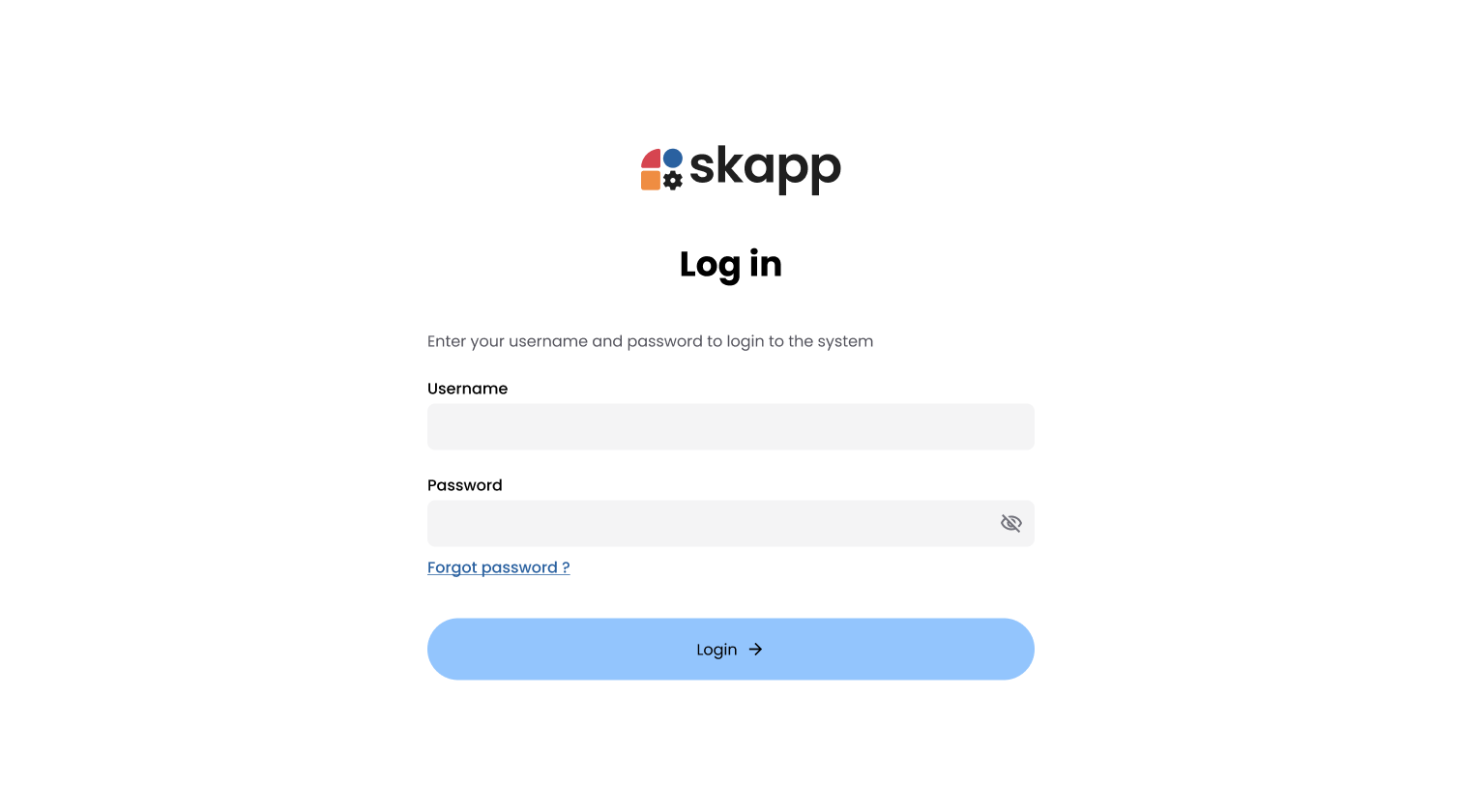
1. Enter Temporary Credentials
- Navigate to the Sign-In page.
- Enter your Username and Temporary Password.
2. Click on Sign-In Button
- Click the Sign-In button.
- Upon successful login, you will be redirected to the Password Reset page.
Resetting Your Password
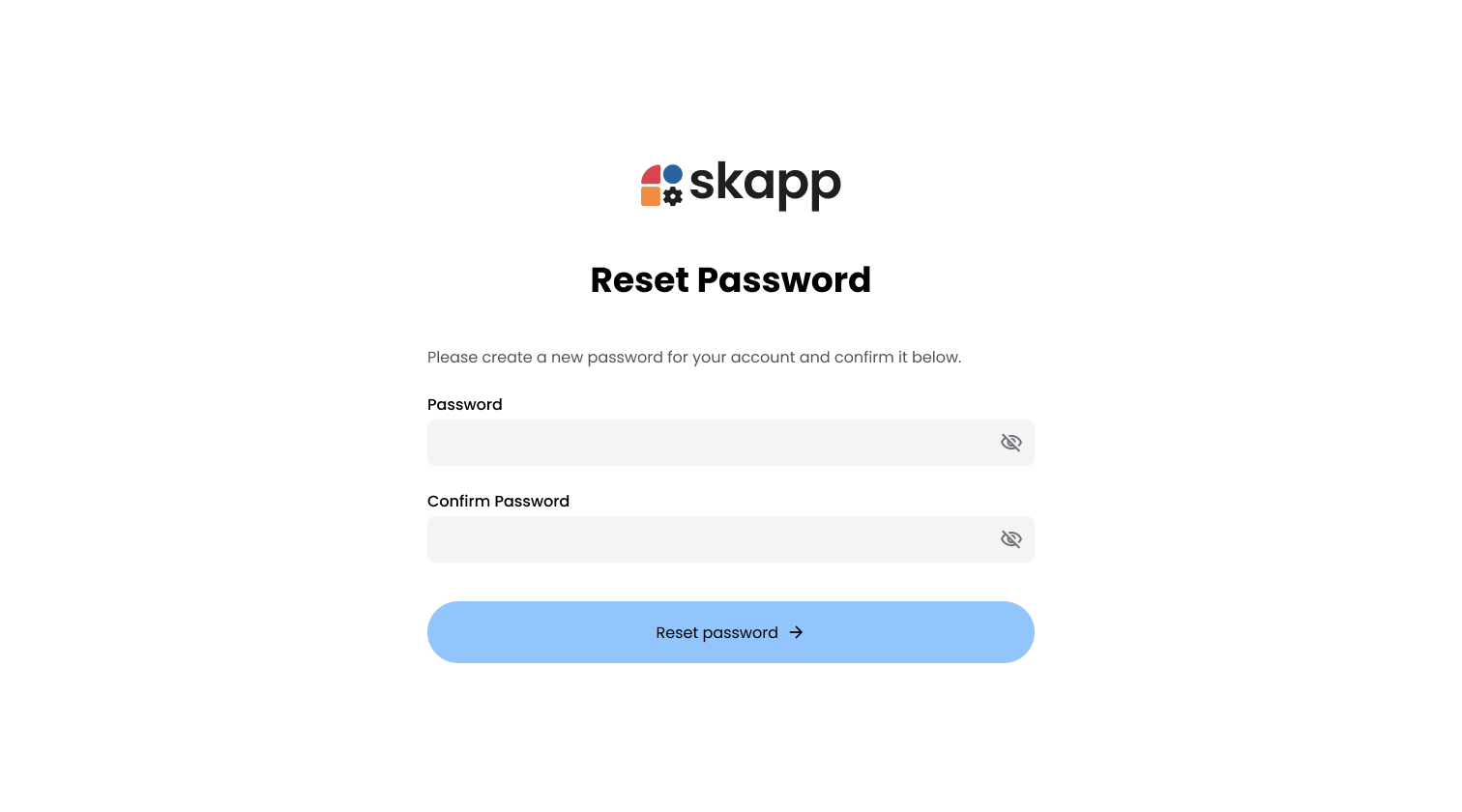
1. Password Requirements
When creating or resetting a password, ensure it meets the following criteria:
- At least one lowercase character.
- At least one uppercase character.
- At least one number.
- At least one special character (e.g., @, $, %, etc.).
- Minimum length of 8 characters.
2. Set a New Password
- Enter your New Password in the password field.
3. Confirm the Password
- Re-enter your password in the Confirm Password field to ensure they match.
4. Submit the New Password
- Click the Reset Password button to finalize the process.
- Upon successful password reset, you will be redirected to the Dashboard.